
Final Cut Pro X không chỉ chỉnh sửa video, âm thanh, đồ họa chuyển động siêu mượt mà còn sở hữu khả năng render (kết xuất) video nhanh bá đạo, gấp nhiều lần Adobe After Effects và Adobe Premiere.
Một điểm cực mạnh nữa của Final Cut Pro X là bạn hoàn toàn có thể biên tập video mà không cần sử dụng chuột, nhờ hệ thống phím tắt (shortcut) thông minh, cực kỳ hiệu quả. Dưới đây là Các phím tắt trong Final Cut Pro X.
Xem thêm Hướng dẫn cách thêm LUT màu vào Final Cut Pro X.
Các phím tắt trong Final Cut Pro X
| Phím tắt | Tác vụ |
|---|---|
| Phím tắt ứng dụng | |
Cmd + H |
Ẩn ứng dụng |
Cmd + M |
Thu nhỏ ứng dụng |
Cmd + O |
Mở thư viện |
Cmd + Q |
Thoát ứng dụng |
Cmd + , |
Mở bảng cài đặt cấu hình – Preferences |
Option + Cmd + K |
Mở cửa sổ cấu hình phím tắt |
Shift + Cmd + Z |
Redo (Khôi phục thay đổi đã thực hiện) |
Cmd + Z |
Undo (Hủy bỏ thay đổi vừa thực hiện) |
| Chỉnh sửa | |
C |
Chọn clip |
Cmd + C |
Sao chép |
Cmd + D |
Nhân đôi |
Cmd + X |
Cắt lựa chọn |
Cmd + G |
Tạo Storyline |
Cmd + Y |
Thử giọng |
Cmd + B |
Blade |
Shift + Cmd + B |
Blade tất cả |
Cmd + A |
Chọn toàn bộ |
Shift + Cmd + A |
Bỏ chọn toàn bộ |
Control + D |
Thay đổi thời lượng |
Control + L |
Điều chỉnh âm lượng tương đối |
Control + Option + L |
Chỉnh âm lượng tuyệt đối |
Delete |
Xóa |
Option + Cmd + Delete |
Chỉ xóa lựa chọn |
V |
Bật/Tắt clip |
G |
Chuyển sang chế độ Storyline |
Option + ] |
Cắt phần cuối |
Option + [ |
Cắt phần đầu |
Option + |
Cắt tới phần lựa chọn |
| Hiệu ứng | |
Option + Cmd + M |
Phối màu |
Shift + Cmd + M |
Phối âm thanh |
Option + Cmd + C |
Sao chép hiệu ứng |
Option + Shift + C |
Sao chép keyframe |
Option + Shift + X |
Cắt keyframe |
Option + Shift + V |
Dán keyframe |
Option + Cmd + V |
Dán hiệu ứng |
Shift + Cmd + V |
Dán thuộc tính |
Option + Tab |
Chuyển tới text tiếp theo |
Option + Shift + Tab |
Chuyển về text trước đó |
| Đánh dấu | |
Option + C |
Thêm chú thích |
Control + Shift + C |
Chỉnh sửa chú thích |
M |
Thêm dấu mốc |
Option + M |
Thêm dấu mốc và chỉnh sửa |
Control + C |
Hiện toàn bộ clip |
Option + X |
Xóa các phạm vi lựa chọn |
Option + O |
Xóa phạm vi kết thúc |
Option + I |
Xóa phạm vi bắt đầu |
Control + M |
Xóa dấu mốc |
Control + Shift + M |
Xóa các dấu mốc trong lựa chọn |
R |
Mở công cụ chọn phạm vi |
X |
Chọn phạm vi clip |
O |
Chọn phần cuối phạm vi |
Control + O |
Chọn phần cuối phạm vi (trong khi chỉnh sửa trường text) |
I |
Thiết lập phần đầu phạm vi |
Control + I |
Thiết lập phần cuối phạm vi (trong khi sửa trường text) |
U |
Bỏ đánh giá khỏi lựa chọn |
| Sắp xếp | |
Option + N |
Tạo sự kiện mới |
Shift + Cmd + N |
Thư mục mới |
Option +Cmd + G |
Đồng bộ hóa clip |
Shift + F |
Mở clip lựa chọn trong trình duyệt |
Option + Shift + Cmd + F |
Mở dự án trong trình duyệt |
| Điều hướng và phát lại | |
S |
Bật/Tắt Skimming |
Shift+ S |
Bật/Tắt Skimming audio |
Option + Cmd + S |
Bật/Tắt Skimming clip |
← |
Tới khung hình trước đó |
Option + ← |
Tới trường trước đó |
Shift + ← |
Quay lại 10 khung hình |
→ |
Chuyển tới khung hình tiếp theo |
Option + → |
Chuyển tới khung hình phụ |
Shift + → |
Chuyển tiếp 10 khung hình |
Home |
Tới phần bắt đầu |
End |
Tới phần kết thúc |
; |
Tới chỉnh sửa trước đó |
' |
Tới chỉnh sửa tiếp theo |
Shift + A |
Kiểm tra âm thanh |
L |
Phát tiếp |
J |
Phát ngược lại |
/ |
Phát lựa chọn |
Control + Shift + O |
Phát cho tới khi kết thúc |
| Phím cách | Bắt đầu hoặc tạm dừng phát lại |
K |
Dừng phát lại |
Option + Shift + A |
Bắt đầu/dừng ghi giọng lồng tiếng |
| Công cụ | |
A |
Công cụ mũi tên |
B |
Công cụ Blade |
H |
Công cụ Hand |
P |
Công cụ Position |
T |
Công cụ Trim |
Z |
Công cụ Zoom |
Shift + C |
Công cụ Crop |
Option + D |
Công cụ Distort |
Shift + T |
Công cụ Transform |
| Xem | |
Cmd + + |
Phóng to |
Cmd + - |
Thu nhỏ |
Shift + Z |
Thu phóng vừa khít khung hình |
Control + Z |
Thu phóng theo các sample |
Option + Shift + N |
Xem tên clip |
Control + A |
Hiện/Ẩn hiệu ứng âm thanh |
Control + V |
Hiện/Ẩn hiệu ứng video |
Control + Y |
Hiện/Ẩn thông tin skimmer |
Shift + Cmd + - |
Giảm chiều cao clip |
Shift + Cmd + = |
Tăng chiều cao clip |
Control + Option + ↑ |
Tăng kích thước sóng âm |
Control + Option + ↓ |
Giảm kích thước sóng âm |
| Cửa sổ | |
Cmd + 1 |
Tới trình duyệt |
Cmd + 2 |
Tới timeline |
Cmd + 3 |
Tới cửa sổ xem |
Cmd + 4 |
Hiện/Ẩn công cụ kiểm tra (Inspector) |
Cmd + 5 |
Hiện/Ẩn trình duyệt hiệu ứng |
Cmd + 6 |
Tới bảng màu |
Cmd + 7 |
Hiện/Ẩn phạm vi video |
Cmd + 8 |
Tới các cải tiến âm thanh |
Cmd + 9 |
Hiện/Ẩn các tác vụ trên nền |
Option + Cmd + 8 |
Hiện/Ẩn trình thu âm |
| Phím tắt chung | |
Cmd + F |
Tìm kiếm |
Cmd + I |
Nhập media |
Cmd + N |
Mở dự án mới |
Cmd + J |
Thuộc tính dự án |
Control + R |
Lựa chọn hiển thị |
Control + Shift + R |
Hiển thị toàn bộ |
Final Cut Pro X Keyboard Shortcuts
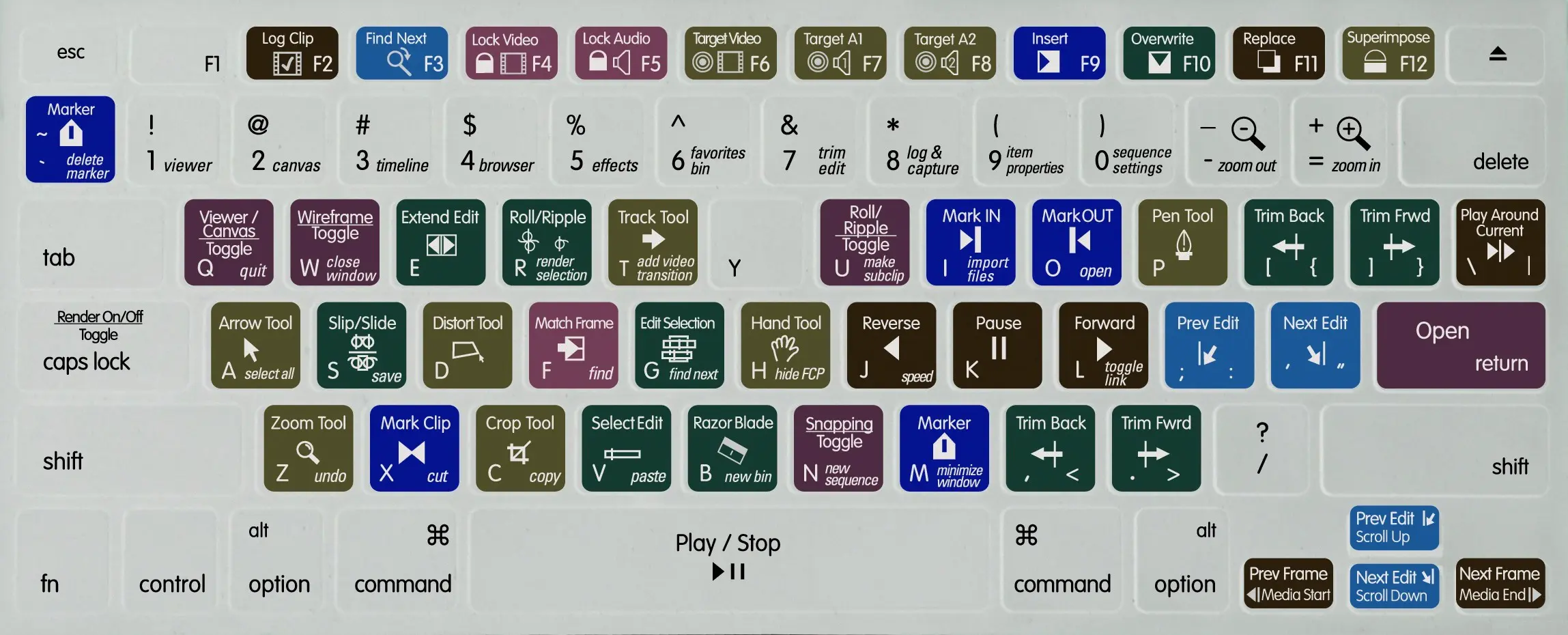
| Shortcut | Action |
|---|---|
| Application Shortcuts | |
| Cmd + H | Hide app |
| Cmd + M | Minimize app |
| Cmd + O | Open library |
| Cmd + Q | Quit app |
| Cmd + Comma (,) | Open preferences |
| Option + Cmd + K | Command editor |
| Shift + Cmd + Z | Redo change |
| Cmd + Z | Undo change |
| Editing | |
| C | Select clip |
| Cmd + C | Copy selection |
| Cmd + D | Duplicate |
| Cmd + X | Cut the selection |
| Cmd + G | Create storyline |
| Cmd + Y | Create audition |
| Cmd + B | Blade |
| Shift + Cmd + B | Blade all |
| Cmd + A | Select all |
| Shift + Cmd + A | Deselect all |
| Control + D | Change duration |
| Control + L | Adjust volume relative |
| Control + Option + L | Adjust volume absolute |
| Delete | Delete |
| Option + Cmd + Delete | Delete selection only |
| V | Enable/Disable clip |
| G | Toggle storyline mode |
| Option + Right Bracket (]) | Trim end |
| Option + Left Bracket ([) | Trim start |
| Option + Backslash () | Trim to selection |
| Effects | |
| Option + Cmd + M | Match color |
| Shift + Cmd + M | Match audio |
| Option + Cmd + C | Copy effects |
| Option + Shift + C | Copy keyframes |
| Option + Shift + X | Cut keyframes |
| Option + Shift + V | Paste keyframes |
| Option + Cmd + V | Paste effects |
| Shift + Cmd + V | Paste attributes |
| Option + Tab | Next text |
| Option + Shift + Tab | Previous text |
| Marking | |
| Option + C | Add caption |
| Control + Shift + C | Edit caption |
| M | Add marker |
| Option + M | Add marker and modify |
| Control + C | Show all clips |
| Option + X | Clear selected ranges |
| Option + O | Clear range end |
| Option + I | Clear range start |
| Control + M | Delete marker |
| Control + Shift + M | Delete markers in selection |
| R | Range selection tool |
| X | Select clip range |
| O | Set range end |
| Control + O | Set range end (while editing a text field) |
| I | Set range start |
| Control + I | Set range end (while editing a text field) |
| U | Removes ratings from selection |
| Organization | |
| Option + N | New event |
| Shift + Cmd + N | New folder |
| Option + Cmd + G | Synchronize clips |
| Shift + F | Reveal selected clip in browser |
| Option + Shift + Cmd + F | Reveal project in browser |
| Navigation and Playback | |
| S | Turn skimming on/off |
| Shift + S | Audio skimming on/off |
| Option + Cmd + S | Clip skimming on/off |
| Left arrow | Go to previous frame |
| Option + Left Arrow | Go to previous field |
| Shift + Left Arrow | Go back ten frames |
| Right arrow | Go to next frame |
| Option + right arrow | Go to next subframe |
| Shift + Right Arrow | Go forward ten frames |
| Home key | Go to beginning |
| End key | Go to end |
| Semicolon (;) | Go to previous edit |
| Apostrophe (‘) | Go to next edit |
| Shift + A | Monitor audio |
| L | Play forward |
| J | Play in reverse |
| Slash (/) | Play selection |
| Control + Shift + O | Play to end |
| Space bar | Start or pause playback |
| K | Stop playback |
| Option + Shift + A | Start/Stop voiceover recording |
| Tools | |
| A | Arrow tool |
| B | Blade tool |
| H | Hand tool |
| P | Position tool |
| T | Trim tool |
| Z | Zoom tool |
| Shift + C | Crop tool |
| Option + D | Distort tool |
| Shift + T | Transform tool |
| Viewing | |
| Cmd + plus sign | Zoom in |
| Cmd + minus sign | Zoom out |
| Shift + Z | Zoom to fit |
| Control + Z | Zoom to samples |
| Option + Shift + N | View clip names |
| Control + A | Show/Hide audio animation |
| Control + V | Show/Hide video animation |
| Control + Y | Show/Hide skimmer info |
| Shift + Cmd + Hyphen (-) | Decrease clip height |
| Shift + Cmd + Equal sign (=) | Increase clip height |
| Control + Option + Up arrow | Increase waveform size (clip appearance) |
| Control + Option + Down arrow | Decrease waveform size (clip appearance) |
| Windows | |
| Cmd + 1 | Go to browser |
| Cmd + 2 | Go to timeline |
| Cmd + 3 | Go to viewer |
| Cmd + 4 | Show/Hide inspector |
| Cmd + 5 | Show/Hide effects browser |
| Cmd + 6 | Go to color board |
| Cmd + 7 | Show/Hide video scopes |
| Cmd + 8 | Go to audio enhancements |
| Cmd + 9 | Show/Hide background tasks |
| Option + Cmd + 8 | Show/hide voice recorder |
| General Shortcuts | |
| Cmd + F | Find |
| Cmd + I | Import media |
| Cmd + N | New project |
| Cmd + J | Project properties |
| Control + R | Render selection |
| Control + Shift + R | Render all |
Shortcuts for Accessing Tools and Windows
The following keyboard shortcuts will access the most-often used windows and tools within Final Cut Pro X:
| Command | Shortcut | Description |
|---|---|---|
| Open Inspector | Command+4 | The Inspector allows you to find detailed video and audio information about your media. It is also where you modify various video, audio and effects parameters for your clips. |
| Open FCP X Preferences | Command+ , (comma) | The Preferences window is where you can set various editing, playback and effects options. |
| Show or Hide the Project Library | Command+O | The Project Library is where you can view and access all of the projects on your system. |
| Show or Hide the Timeline Index | Shift+Command+2 | The Timeline Index shows you a list of all of the material—clips, markers, keywords, to-do items, etc.—that you have in your Timeline. By clicking on any particular item within the Timeline Index, you can jump to that location in the sequence. |
| Show or Hide the Keyword Editor | Command+k | The Keyword Editor allows you to access and add keywords for your clips. |
| Open the Command Editor | Command+Option+k | The Command Editor allows you to customize your keyboard shortcuts and search for FCP X editing commands. |
| Show or Hide the Background Tasks window | Command+9 | The Background Tasks window is where you can check the status of background renders, imports, analyses, transcodes, etc. |
| Show or Hide the Audio Meters | Command+Shift+8 | The Audio Meters allow you to check the db level of your audio for clips in the Timeline or Event Browser. |
| Show or Hide the Color Board | Command+6 | The Color Board allows you to manipulate the color, saturation and exposure of your clips. |
| Show or Hide Audio Animation | Control+a | Shows or Hides Audio Animation for selected clip(s) to allow you to keyframe audio. |
| Show or Hide Video Animation | Control+v | Shows or Hides Video Animation for selected clip(s) to allow you to keyframe video effects. |
Editing Shortcuts
The following keyboard shortcuts will activate the primary editing functions within Final Cut Pro X:
| Command | Shortcut | Description |
|---|---|---|
| Insert Edit | w | An Insert Edit will insert the selected clip at the location of the skimmer or playhead. All downstream clips will shuffle down to accommodate the edit. |
| Overwrite Edit | d | An Overwrite Edit will overwrite the selected clip at the location of the skimmer or playhead. |
| Append Edit | e | An Append Edit will add the selected clip to the end of the storyline. |
| Connect to Primary Storyline | q | The Connect to Primary Storyline command will connect the selected clip to the primary storyline (above or below) at the location of the skimmer or playhead. |
| Video Only EditAudio Only Edit | Option+2Option+3 | You can choose whether to edit video only or audio only into the Timeline at the location of the skimmer or playhead. |
| Mark IN pointMark OUT point | io | Marking IN and OUT points allows you to set the boundaries of the clips that you edit into the Timeline |
| Delete (Extract)Replace w/ Gap | DeleteForward Delete | Pressing the Delete key will extract the selection from the Timeline.Pressing the Forward Delete key (Fn+Delete on a laptop) will lift the selection and replace it with a gap clip. |
| Select (Arrow) Tool | a | The Select Tool allows you to grab clips and move them around within the magnetic timeline. |
| Trim Tool | t | The Trim Tool allows you to perform rolls, slip edits and slide edits. |
| Position Mode | p | The Position Tool overrides the magnetic timeline and allows you to grab clips and move them around within gaps. |
| Range Selector | r | The Range Selector allows you to select a range that spans a portion of a clip or multiple clips. You can mark these ranges with ratings and keywords, apply effects to them and modify them in other ways. |
| Blade Tool | b | The Blade Tool allows you to split a selected clip in half. |
| Mark as FavoriteReject Clip | fDelete | Selecting a clip and pressing the f key will Favorite it, while pressing Delete will Reject it. |
| Add markerAdd marker/modifyDelete marker | mOption+mControl+m | Adds a marker at the location of the skimmer or playhead. To edit the marker’s text, press m again, or press Option+m to add and modify. |
| Render selectionRender all | Control+rShift+Control+r | Render selection allows you to start rendering tasks for a selection in your Timeline; Render all allows you to start all rendering tasks. |
| Break Apart Clip Items | Command+Shift+g | Selecting Break Apart Clip Items breaks a clip into its component parts. |
| New Compound Clip | Option+G | If you lasso several clips and select New Compound Clip, the clips will form one compound clip, which you can modify as one. |
| Add Cross Dissolve | Command+t | Adds a cross dissolve at selected transition. |
| Copy EffectsPaste Effects | Command+Opt+cCommand+Opt+v | Allows you to copy and paste the effect parameters from one clip to another. |
| Match AudioMatch Color | Command+Shift+mCommand+Opt+m | Matches sound and color between clips, respectively. |
| Import MediaImport Files | Command+iCommand+Shift+i | The Import Media command will open the Camera Import window, which will allow you to capture or import media. (Shown at left.)The Import Files command will open the Import Files window, which allows you to navigate to the desired files for import. |
| Export Movie | Command+e | The Export Movie command exports the selected project as a movie file. |
Useful Modifiers for Common Navigation Tasks
Use these modifiers to help streamline the most common Final Cut Pro X navigation tasks:
| Command | Shortcut | Description |
|---|---|---|
| Zoom to FitZoom InZoom Out | Shift+zCommand +Command – | Zoom to Fit will auto-fit your entire sequence in the Timeline view. Zooming In and Out will incrementally increase or decrease the zoom factor. |
| Go to Event BrowserGo to TimelineGo to Viewer | Command+1Command+2Command+3 | These commands activate the three main windows in FCP X — the Event Browser, the Timeline and the Viewer. |
| Go fwd 1 frameGo back 1 frameGo fwd 10 framesGo back 10 frames | Right ArrowLeft ArrowShift+Left ArrowShift+Right Arrow | Self-descriptive. |
| Nudge LeftNudge RightNudge Left 10 framesNudge Right 10 framesNudge UpNudge Down | , (comma). (period)Shift+, (comma)Shift+. (period)Option+Up ArrowOption+Down Arrow | Self-descriptive. |
| Go to next editGo to previous editGo to next markerGo to prev. marker | ‘ (apostrophe); (semicolon)Control+’Control+; | Self-descriptive. |
| Play ForwardPausePlay Reverse | jkl | Press J once to go backwards in real time. Press J again to go 2x speed (backwards), again to go 3x speed, and so on.Press L once to go forwards in real time. Press L again to go 2x speed (forwards), again to go 3x speed, and so on.Press K and L together to move backwards in slow motion.Press K and J together to move forwards in slow motion. |
| Play selection | / (slash) | Plays the selected portion of the clip or timeline |
| Turn on/off video and audio skimming | s | Turning off video and audio skimming makes the playhead behave like previous versions of FCP, where the playhead did not skim over the footage without clicking the mouse. |
| Turn on/off audio skimming | Shift+s | Turning off audio skimming allows the playhead to navigate through the Timeline soundlessly. |
| Enable/disable snapping | n | Disabling snapping will prevent the playhead from snapping to edit points in the Timeline. |
Tự kiểm tra kiến thức
Các thẻ lấy từ nội dung bài học. Với câu điền khuyết, bấm vào dấu “…” để chọn cụm từ phù hợp; với thẻ nhớ lại, em tự đối chiếu và đánh giá.